

Instances
Manage customer instances, view feature flags, entitlement usage, and audit trails.
Instances
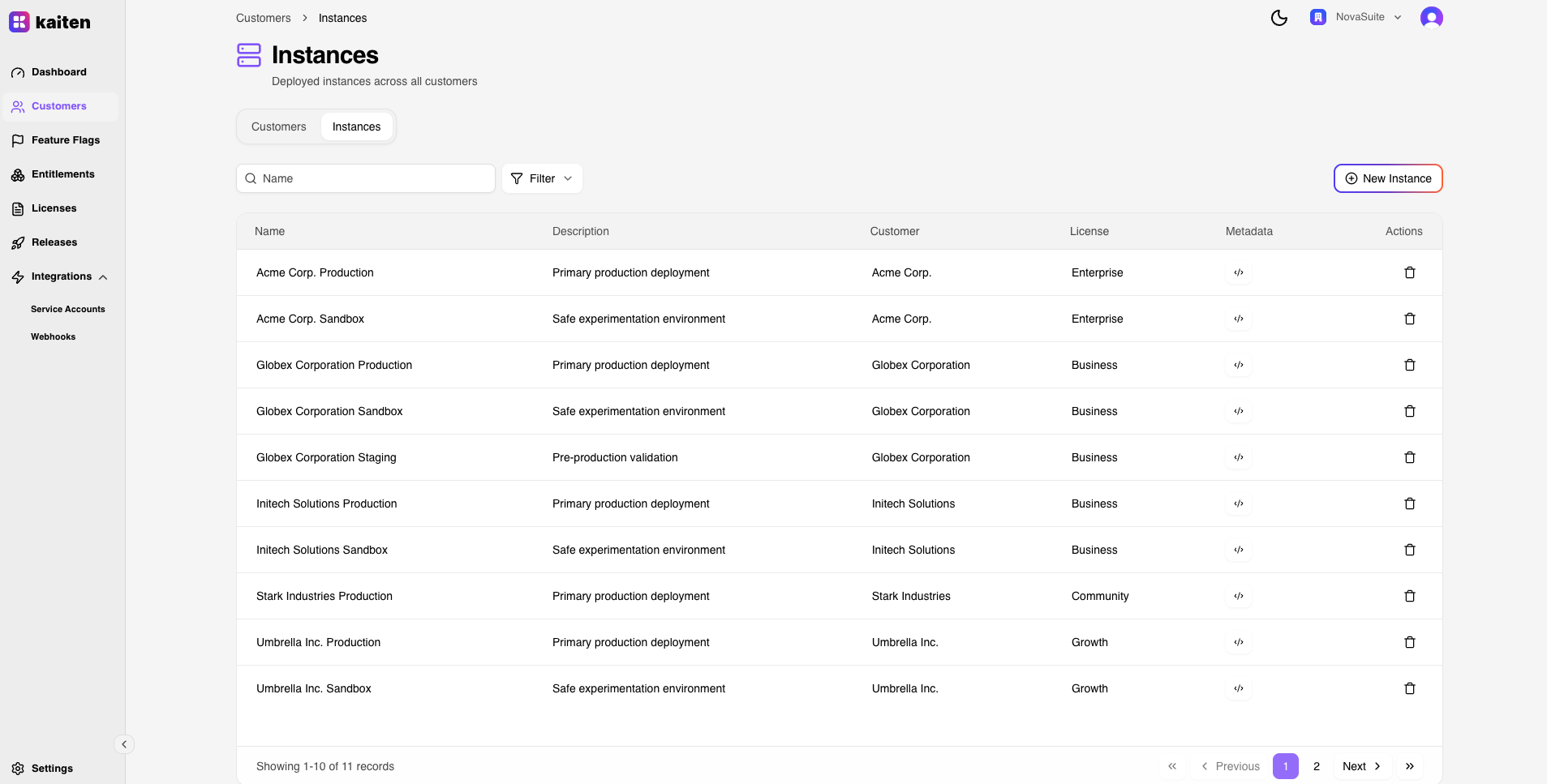
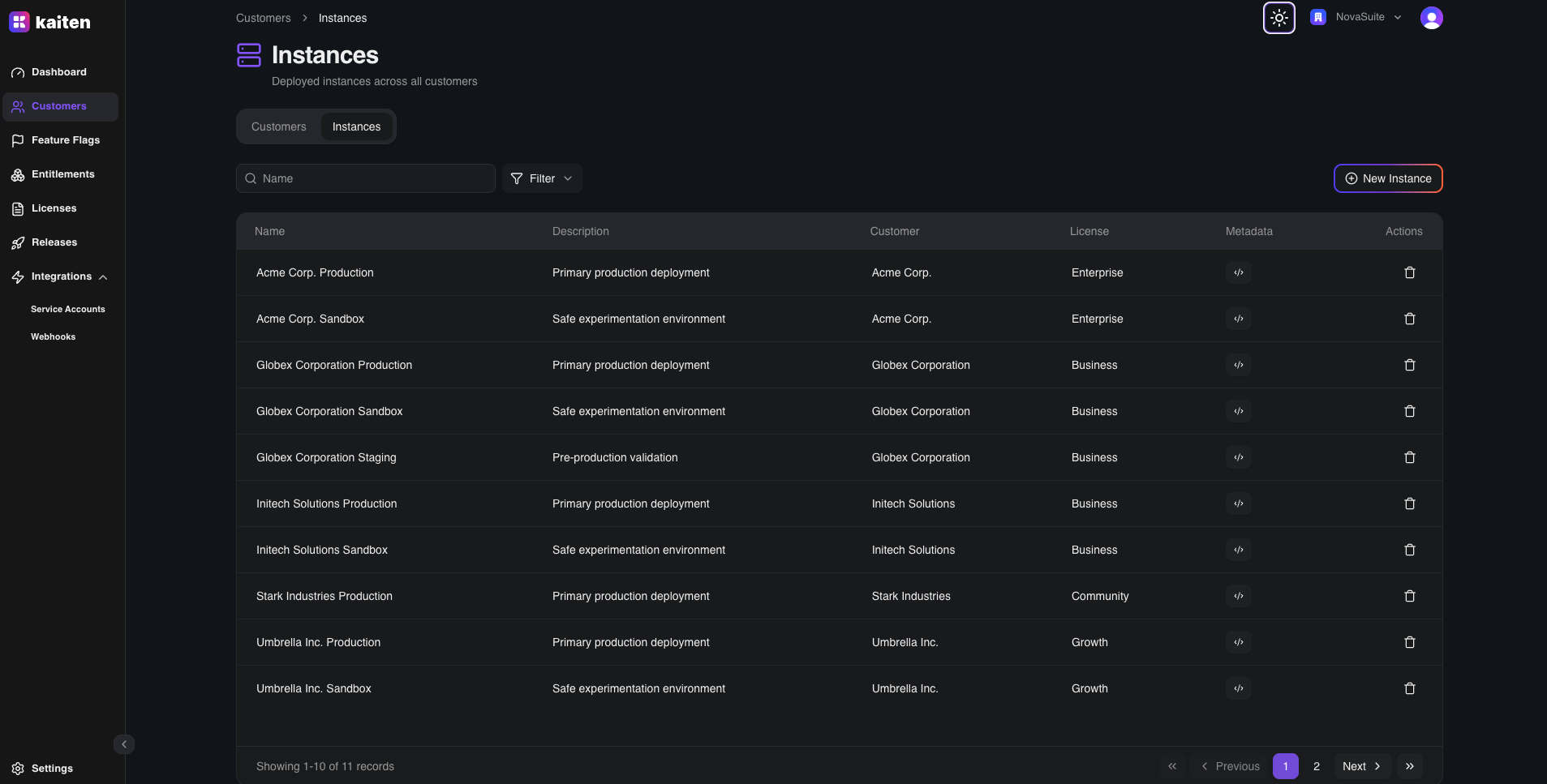
Instances represent deployments of your product for a specific customer. They are accessible from within a customer's detail page (/customers/instances).
Instance List
From any customer, click the Instances tab to see all instances. Each entry shows:
- Name, slug, and description
- Assigned license
- License dates (start/end)
- Metadata (JSON) — click to view in a dialog
Creating an Instance
- Navigate to a customer → Instances → New Instance
- Fill in:
- Name — Instance name (e.g. "Production")
- Slug — URL-safe identifier
- Description — Free-form description
- License — Select the license tier
- Deployment Zone — Optional logical environment
- License Dates — Start and end dates
- Metadata — Optional JSON key-value pairs for custom instance data
- Click Create
Instance Detail
Click an instance to access its detail page with multiple tabs:
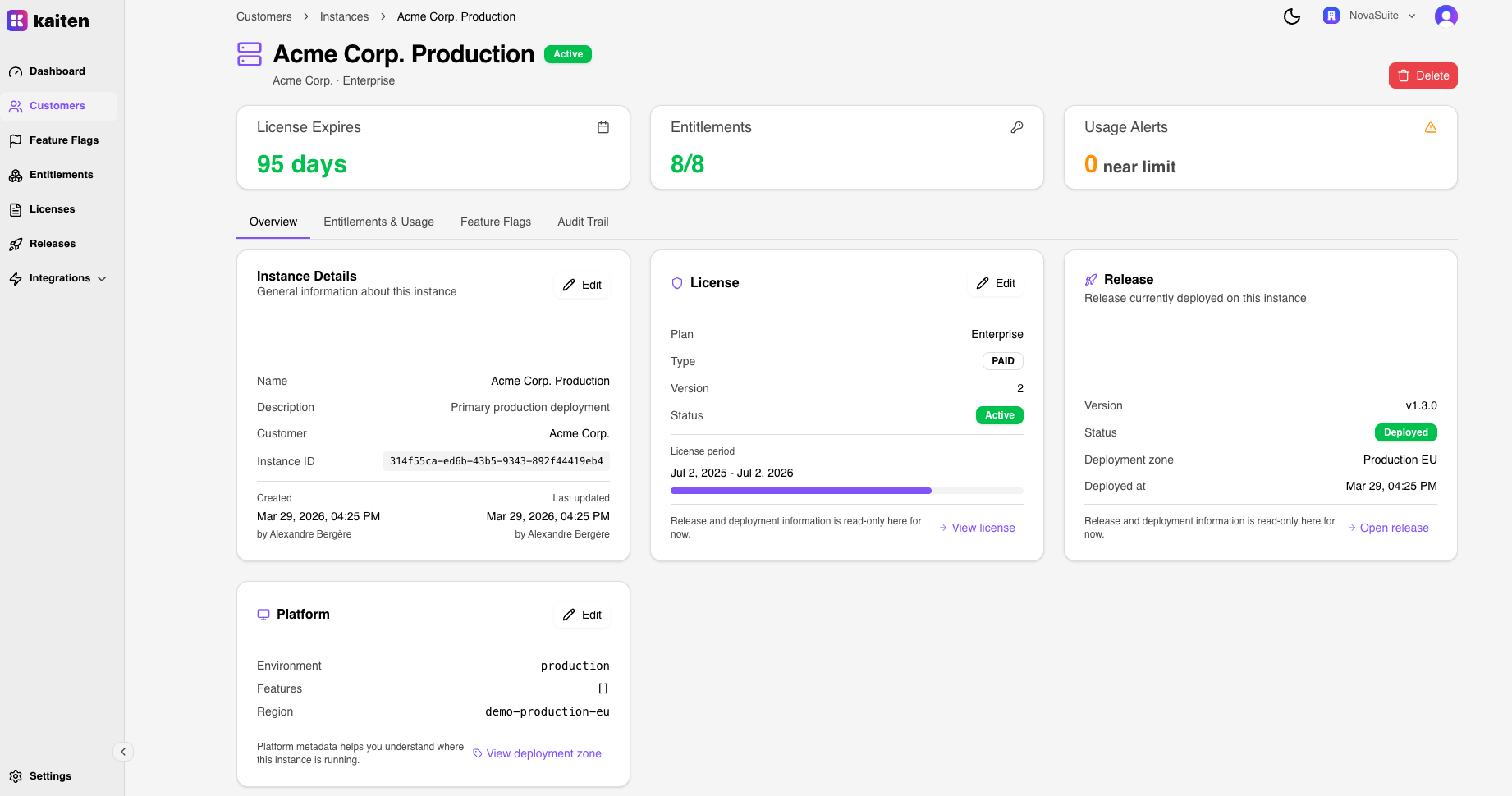
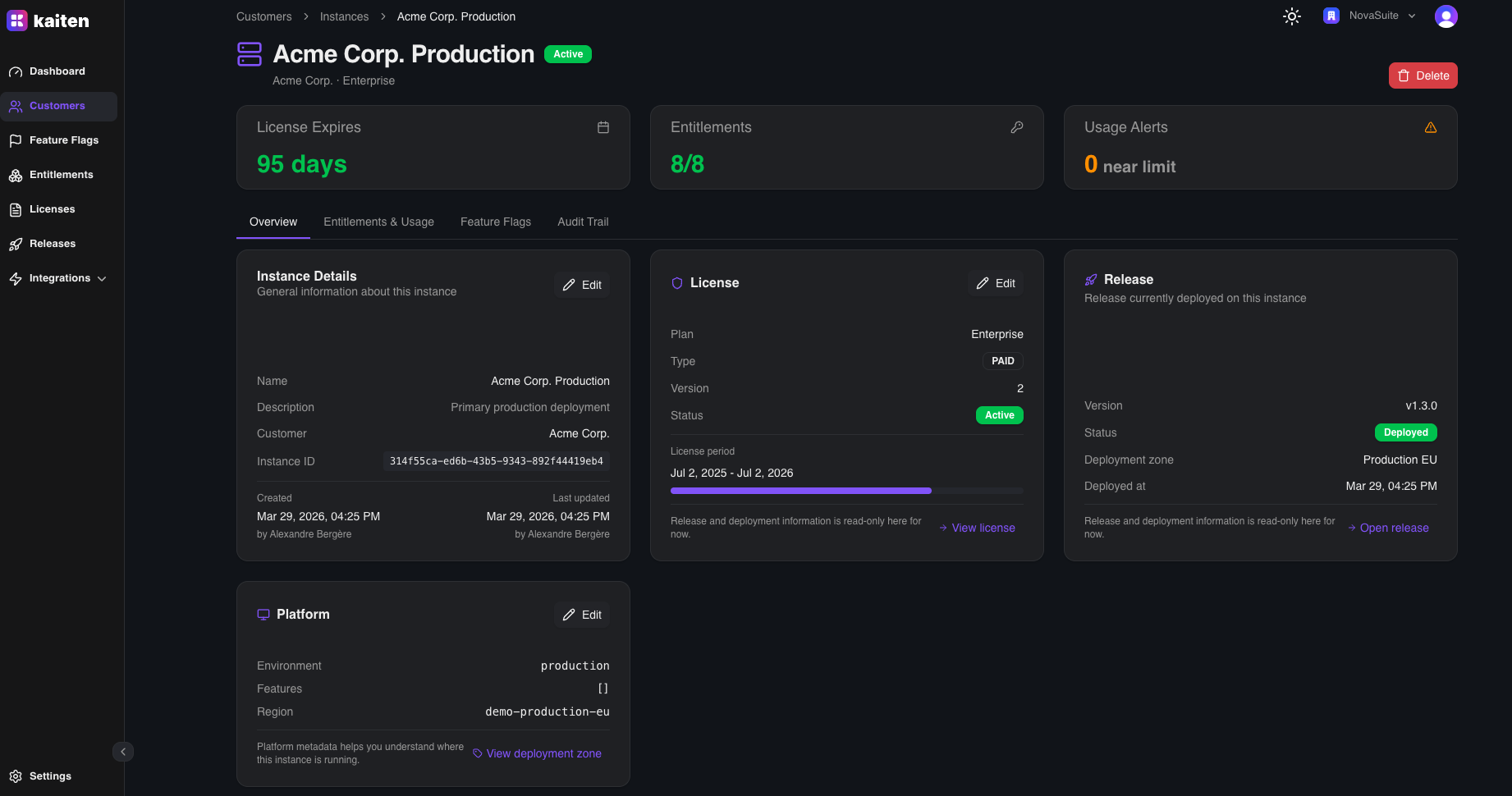
Overview Tab
- Instance metadata (name, slug, description)
- Assigned license and dates
- Deployment zone
- Custom metadata (JSON)
Feature Flags Tab
View all feature flags and their evaluated values for this specific instance. This shows how each flag resolves given this instance's context.
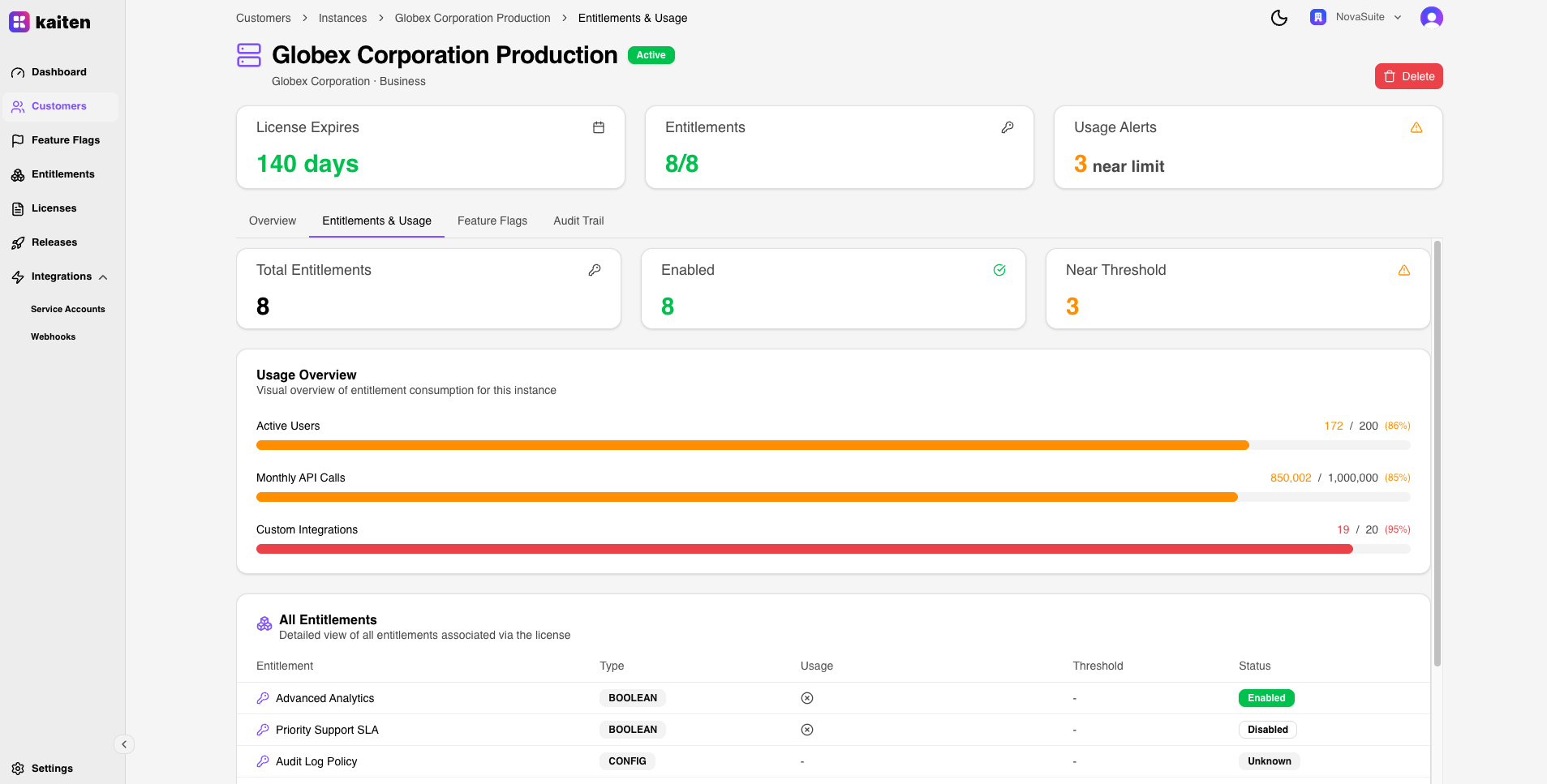
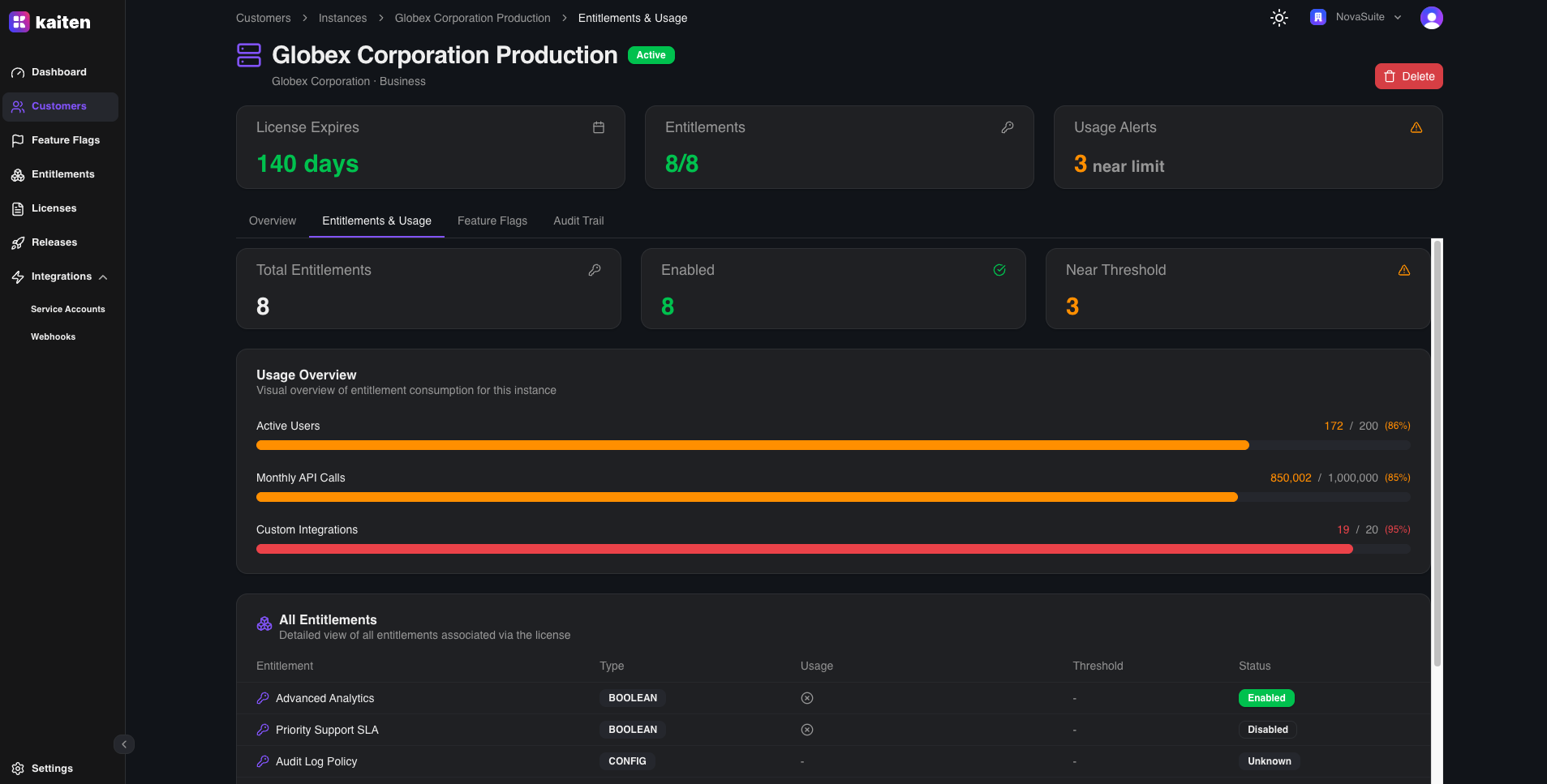
Entitlements Tab
View entitlement usage for this instance:
- Current consumption vs threshold
- Usage history
- Audit trail entries
Audit Trail Tab
Monitor all entitlement-related events for this instance in real time. The Audit Trail provides full visibility into how your entitlements are being consumed.
Stats Cards — Four key metrics at a glance:
- Total Events — Total number of audit trail entries
- Accepted — Usage reports that were accepted (within quota)
- Rejected — Usage reports that were rejected (quota exceeded)
- Today — Events recorded today
Activity Timeline — A stacked bar chart showing daily event distribution by category (Read, Accepted, Rejected). You can:
- Filter by specific entitlement
- Toggle series visibility (show/hide each event type)
Value Over Time — A line chart tracking the value of numeric entitlements over time (visible only for NUMBER-type entitlements).
Event Log — A filterable table listing all audit trail entries with:
- Event ID, event type, associated entitlement, status badge, and timestamp
- Full-text search across events
- Filters by event type and status (Accepted / Rejected)
- Click the eye icon on any row to view the full event payload in a detail dialog
How It Works — An informational card explaining the three event types:
- Entitlement Read — A client queried an entitlement value
- Usage Accepted — A usage report was recorded and accepted
- Usage Rejected — A usage report was rejected (threshold exceeded)
Edit
Update instance properties, change the assigned license, or modify the deployment zone.
API Equivalent
| Action | Endpoint |
|---|---|
| List | GET /api/instances |
| Create | POST /api/instances |
| Get | GET /api/instances/{slug} |
| Update | PUT /api/instances/{slug} |
| Delete | DELETE /api/instances/{slug} |
| Report Usage | POST /api/instances/{slug}/entitlements/{entSlug}/usage |
| Audit Trail | GET /api/instances/{slug}/audit-trails |